What’s covered
- What is Unity’s Localization Package?
- Where does the Unity Localization Package fall short?
- What does a Unity localization workflow look like with an external platform?
- How does a dedicated Unity localization workflow compare to built-in tools?
- Is the Unity Localization Package still worth using?
- Frequently asked questions
Building a Unity localization workflow that holds up at scale requires more than the engine’s built-in tools. Unity’s built-in Localization Package handles the basics well - string tables, locale switching, asset localization. For a solo developer shipping in two languages, it is more than enough. But the moment a studio introduces external translators, multiple build cycles, or a growing string count, the cracks begin to show.
This guide explains what Unity’s Localization Package actually does, where it runs into limits at scale, and what a production-ready Unity localization pipeline looks like when you connect it to an external content management platform.
What is Unity’s Localization Package?
Unity’s Localization Package is a first-party tool for managing translated content inside the Unity engine. It provides a structured system for storing strings and assets by locale, switching languages at runtime, and handling language-specific formatting like plurals and dynamic variables.
Key features of the package include:
- String tables and asset tables: String tables store key-value pairs for text content. Asset tables handle localized assets like audio clips, textures, and fonts.
- Smart Strings: These allow developers to add placeholders, handle plurals, and manage language-specific nuances directly in the string value without writing custom code.
- Runtime locale switching: Players can switch languages in-game without restarting the application, and UI elements update automatically.
- CSV import and export: String tables can be exported as CSV files for external editing and reimported after updates.
- Google Sheets connector: The package includes a built-in connector for syncing string tables with Google Sheets, which is useful for small teams working collaboratively.
The package is available through Unity’s Package Manager and is the recommended approach for in-engine localization in Unity 2019.4 and later. It handles the engine side of things well - but it is only one piece of a broader game localization workflow.

Where does the Unity Localization Package fall short?
The Unity Localization Package is designed for in-engine string management, not for localization workflows that involve external teams, version control, or continuous content updates.
For small projects with a single developer managing translations, this is not an issue. But for any studio shipping in five or more languages with a dedicated localization team, several limitations become hard to work around.
Does Unity have translation memory or machine translation built in?
No. The Unity Localization Package has no translation memory (TM) or machine translation (MT) features. Every string is treated independently, which means repeated phrases, reused UI labels, and minor content updates all get translated from scratch. This drives up cost and inconsistency as a project scales.
How do you share Unity strings with external translators?
The standard approach is to export a CSV file and send it by email or share it via a spreadsheet. This works in a one-off scenario, but it creates compounding problems in practice:
- Translators work in isolation without knowing where strings appear in-game.
- Version mismatches occur when strings change mid-sprint and the CSV is already with a vendor.
- Reimporting a modified CSV requires manual reconciliation if keys have changed.
- There is no audit trail showing who changed what, when, and whether a string was reviewed.
Can translators see context inside Unity?
Not without additional tooling. Context - meaning screenshots, character limits, and placement information - is critical for translation quality, especially for UI strings where space is tight. The Unity Localization Package does not provide a way for translators outside the engine to see where a string appears in the interface.
How does Unity handle live content updates?
Without an external pipeline, updating translations after a build typically requires a full rebuild and redeployment. For live service games pushing weekly content updates or seasonal events, this creates a bottleneck that conflicts with the update cadence.
What about multi-project studios?
The Unity Localization Package is scoped to a single Unity project. Studios managing localization across several titles have no way to share terminology, reuse translation memory, or maintain consistency between projects from within Unity.
What does a Unity localization workflow look like with an external platform?
The most scalable Unity localization pipelines use Unity’s Localization Package for in-engine string referencing and runtime switching, and connect it to an external platform for everything else - content management, translation workflows, and live updates.
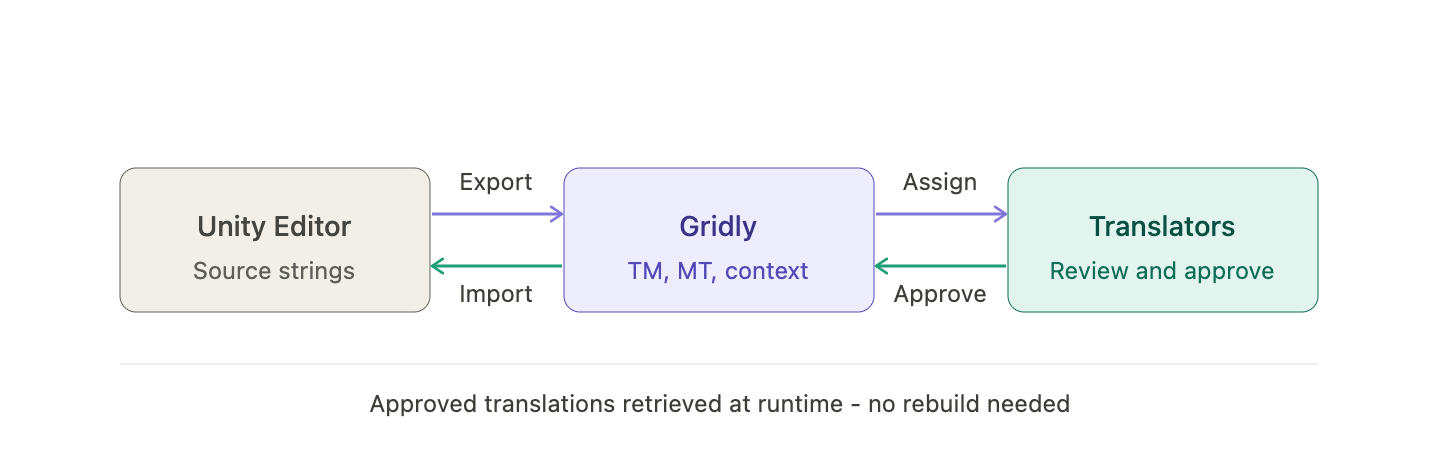
This is not an either/or choice. Unity’s package and an external localization platform work as complementary layers: Unity handles what happens inside the engine, and the platform handles what happens between the engine and the people who produce translations.
Gridly is a localization content management platform designed for game and software teams. It connects to Unity through a free plugin available on GitHub and supports the full push-pull workflow described below.
Here is how a typical pipeline works once the integration is in place:
- Install the Unity Localization Package via Unity's Package Manager and set up your string tables and target locales as normal.
- Install the Gridly Unity plugin by copying it into your project's
Assetsfolder. The plugin is free and available at github.com/gridly-spreadsheet-CMS/unity-loc-package. It is supported on Unity 2020.3 and later. - Configure the plugin with your Gridly View ID and API key. Select the languages and string tables you want to sync.
- Push strings and screenshots to Gridly. Text content and in-game screenshots are sent to Gridly's spreadsheet interface, where each string sits next to its visual context. Translators see exactly where a string appears before they translate it.
- Translators work inside Gridly. Translation memory surfaces matches automatically. Machine translation is available through integrated providers like DeepL, Algebras, OpenAI, and more. Teams can filter by language, status, or changed strings to prioritize work efficiently.
- Pull approved translations back into Unity. When translations are ready, click "Get View Data from Gridly" in the plugin, select the languages and files to import, and pull the approved content directly into your string tables.
- Push live updates without rebuilding. Approved translations can be retrieved at runtime, allowing content updates to go out without a full build cycle.
The plugin also supports separate views for push and pull operations, giving teams the option to manage source content and translated content in different Gridly views - a useful pattern for studios that want stricter control over what goes to translators versus what goes into the build.
How does a dedicated Unity localization workflow compare to built-in tools?
The table below outlines how Unity’s built-in capabilities and Gridly compare across the key areas that matter at production scale.
| Feature | Unity Localization Package | Gridly |
|---|---|---|
| String table management | Yes | Yes |
| Runtime locale switching | Yes | Yes |
| CSV import / export | Yes | Yes |
| Translation memory | No | Yes |
| Machine translation | No | Yes (DeepL, Algebras, OpenAI, and others) |
| In-context screenshots for translators | No | Yes |
| Live runtime updates without rebuild | No | Yes |
| Multi-project management | No | Yes |
| Workflow tracking and approval | No | Yes |
| Smart String support | Yes | Compatible |
Unity’s package wins on in-engine integration because it was built for that purpose. Gridly wins on everything that happens beyond the engine boundary - collaboration, automation, and content operations.
Is the Unity Localization Package still worth using?
Yes - and the answer is not a qualified yes. It is the right tool for what it does. The Unity Localization Package gives you a robust, officially supported architecture for string referencing, locale switching, and asset localization inside the engine. Replacing it with a custom solution would create more problems than it solves.
The pattern that works at production scale is to keep the Unity Localization Package in place for all in-engine work, and to connect it to an external platform for content management and translation operations. Each layer does what it is good at.
Unity powered 51% of all games released on Steam in 2024 (Market.us, 2025), and it is used in 50% of mobile games globally (G2, 2025) - which means the localization pipeline question is not hypothetical for a large proportion of studios actively shipping games. Getting your Unity localization workflow right early reduces rework and eliminates the manual handoffs that slow down global releases.
Frequently asked questions
Can I use Gridly with Unity’s Localization Package?
Yes. The Gridly Unity plugin is built specifically to work alongside Unity’s Localization Package. It reads from and writes to your existing string tables, so there is no need to restructure your project.
Do I need to rebuild my Unity project when translations update?
No. Gridly supports runtime content retrieval, which means approved translations can be pushed to players without a new build. This is particularly useful for live service games with frequent update cycles.
Does Gridly support screenshots for translator context?
Yes. When you push strings from Unity to Gridly, the plugin also transfers screenshots. These appear in Gridly next to the corresponding string so translators can see placement and context before translating.
What Unity versions does the Gridly plugin support?
The Gridly Unity plugin supports Unity 2020.3 and later. You can download it for free from the GitHub repository.
How does Gridly handle string keys that change between builds?
The plugin includes a “Delete removed records from Gridly” option. When enabled, strings that have been removed from Unity are also removed from Gridly, keeping your view in sync with your project’s current state.
What is the difference between using Gridly and exporting a CSV?
CSV export is a one-way snapshot. Once the file is with a translator, it is disconnected from the source. Gridly maintains a live connection between Unity and the translation workflow, which means changes, approvals, and updates are always in sync - and there is no manual file management involved.
If you are working on a Unity project and want to see what a connected Unity localization workflow looks like in practice, you can try Gridly free for 14 days or read the setup guide on GitHub to get started.
Author

Quang Pham
Quang has spent the last 6 years as a UX and technical writer, working across both B2C and B2B applications in global markets. His experience translating complex features into clear, user-friendly content has given him a deep appreciation for how localization impacts product success.
When he's not writing, you'll likely find him watching Arsenal matches or cooking.

💡 Skip the guesswork in AI localization. Join us in a candid discussion with industry experts on building workflows that scale.
What you'll get in this session:
- Why plugging a generic LLM into your pipeline isn't enough
- How to scale AI localization across millions of words and languages
- What live game updates demand from your AI workflow
- The real path to seeing ROI from AI localization